
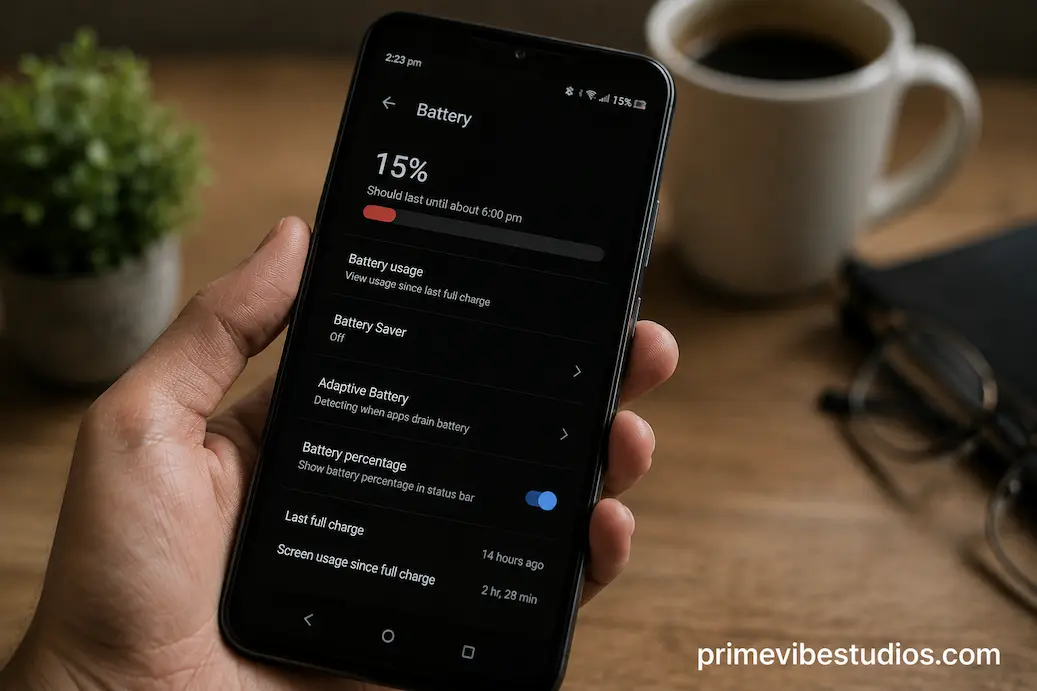
It can be frustrating to pick up your phone after leaving it untouched for a few hours and discover that the battery has dropped noticeably. You may not have opened a game, watched videos, browsed social media, or made a long call, yet the battery percentage keeps falling. This can make it seem as though the battery is failing for no obvious reason.
In reality, a phone can consume power while sitting idle because many processes continue running in the background. Apps may synchronize information, the phone may search for a stronger mobile signal, location services can remain active, notifications can arrive, and the display or other hardware may periodically wake the device. Battery health also matters, but it isn’t always the first thing to blame.
The useful question isn’t simply, “What is draining my battery?” It is which activity is consuming the power and why? Once you identify that, you can usually make sensible changes without disabling every useful feature on the phone.
Your Phone Is Never Completely Inactive
A modern smartphone may look idle when the screen is off, but it doesn’t mean the entire device has stopped working. The operating system continues performing tasks that are necessary for communication, security, synchronization, and normal operation.
Your phone may check for new messages, synchronize email, update certain apps, maintain network connections, process notifications, back up information, or perform other scheduled activities. These processes generally use relatively little power individually, but their combined activity can become noticeable over many hours.
Some phones are particularly aggressive about background activity, while others are designed to put apps into deeper sleep states when they haven’t been used recently. The behavior can also change after an operating system update, an app update, or a change in your settings.
This is why simply saying that an unused phone “shouldn’t lose battery” isn’t quite accurate. The important issue is whether the amount of battery lost during idle periods is reasonable for the phone’s condition and environment.
Poor Cellular Signal Can Be a Surprisingly Large Factor
One of the easiest causes to overlook is weak cellular reception.
When your phone has a strong signal, communicating with a mobile network generally requires less effort than when the device is struggling to maintain a connection. In a location with poor reception, the phone may repeatedly search for or communicate with available networks.
This can become particularly noticeable inside buildings with thick walls, underground areas, rural locations, or places where the cellular signal fluctuates frequently. You might not be actively using the phone, but the device still needs to maintain connectivity.
Try comparing battery behavior in two different locations. If the battery drops considerably faster when you leave the phone somewhere with weak reception, the cellular connection may be contributing to the problem.
That doesn’t mean you should permanently disable cellular connectivity. It simply gives you a useful clue about what’s happening.
Background Apps Can Keep Doing Work
Apps don’t necessarily stop all activity when you close their windows.
Some applications need background access to perform legitimate functions. Messaging apps need to receive messages, cloud-storage services may synchronize files, navigation services can use location information, and email applications may periodically check for new mail.
The problem occurs when an app performs much more background activity than you expect.
A newly installed app can sometimes be responsible for a sudden change in battery behavior. An update can also introduce a bug that causes excessive background processing. In such cases, you may notice that the battery drains unusually quickly even though your usage hasn’t changed.
Instead of guessing, check your phone’s battery statistics. Both Android and iPhone devices provide battery-usage information, although the exact menus and labels vary between versions.
Look for an application that appears unusually high compared with your actual usage. If you barely opened an app but it accounts for a significant amount of battery activity, that’s worth investigating.
Notifications Wake More Than Just Your Attention
Notifications don’t always mean the screen stays on for a long time, but they can still cause the phone to perform additional work.
A notification may require a network connection, processing by an app, a vibration, a sound, or a brief display wake-up. One notification is unlikely to make a meaningful difference, but dozens or hundreds throughout the day create repeated activity.
This is especially relevant when you allow many shopping, social, news, entertainment, or promotional apps to send alerts.
The goal isn’t to eliminate notifications. Instead, ask which notifications actually require immediate attention.
For example, a message from a person may be useful immediately, while a shopping application’s promotional alert usually isn’t. Reducing unnecessary alerts can make your phone quieter and reduce some unnecessary activity.
It also offers another benefit: you are less likely to pick up the phone simply because it has asked for your attention.
Location Services May Be Working in the Background
Location is another feature that can contribute to battery consumption, although its effect depends heavily on how individual apps use it.
A navigation app actively tracking your position can consume considerably more power than an application that occasionally checks your approximate location. Some apps may request location access for features that you rarely use.
Review which applications have access to your location and what level of access they have. Depending on the operating system and app, you may have options such as allowing location only while the app is being used, allowing it in the background, or completely denying access.
Don’t automatically disable location access for everything. Some services genuinely need it. Navigation, device-finding features, weather information, transportation services, and other functions can depend on location.
Instead, use the least access necessary for each app to perform its intended job.
A Bright Screen Isn’t the Only Display-Related Issue
The display is usually one of the most significant sources of smartphone power consumption during active use, but certain display-related settings can also matter when you aren’t deliberately using the phone.
Features such as always-on displays can keep parts of the screen active or periodically update information. Wake-on-notification features can also activate the display whenever an alert arrives.
If your phone has an always-on display and you’re experiencing unusually high idle battery loss, temporarily disabling it can be a useful diagnostic test.
You don’t necessarily need to turn the feature off permanently. If the battery difference is small, you may decide that the convenience is worth the extra consumption. If the difference is substantial, you have identified one setting that may be worth changing.
The best battery adjustments are often about trade-offs rather than blindly turning everything off.
Bluetooth, Wi-Fi and Other Connections Usually Aren’t the Main Villain
People often blame Bluetooth or Wi-Fi immediately when battery life decreases, but these connections aren’t automatically major sources of battery drain.
Modern phones are designed to manage wireless connections efficiently. Leaving Wi-Fi or Bluetooth enabled doesn’t necessarily mean your battery will disappear quickly.
However, unusual circumstances can change the situation. A phone that repeatedly searches for networks, struggles to connect, or constantly communicates with connected accessories may use more power than usual.
Rather than disabling every wireless feature, seek evidence in your battery statistics and compare behavior.
If your battery drains normally with Wi-Fi enabled at home but drops rapidly in a location with poor reception, for example, the broader connectivity environment is more likely to be relevant than the mere fact that Wi-Fi is switched on.
Recent Updates Can Temporarily Change Battery Behavior
Sometimes battery drain begins immediately after a software update.
That doesn’t automatically mean the update has permanently damaged your phone. After a major operating system update, the device may perform additional background work such as indexing files, optimizing applications, synchronizing information, or rebuilding certain system data.
Apps may also update around the same time.
As a result, battery performance can temporarily look worse than normal. If the problem appeared immediately after an update, give the phone some time while monitoring the situation rather than immediately performing drastic troubleshooting.
Should excessive drain persist for an extended period, check whether a particular app or system process is consistently responsible.
Battery Health Changes the Picture
If your phone is several years old, the battery itself deserves attention.
Lithium-ion batteries naturally lose some capacity as they age. That means a battery that originally held enough energy to last an entire day may eventually provide noticeably less usable capacity.
This can create an important distinction:
The phone may not be consuming dramatically more power. The battery may simply be holding less of it.
On iPhones, Battery Health information can help indicate the condition of the battery. Many Android phones provide similar information, although the available diagnostics vary by manufacturer and model.
Battery health is only one part of the diagnosis. A phone with a healthy battery can still drain quickly because of a poorly behaved application, weak signal, high background activity, or another software issue.
Likewise, an old battery can make normal phone activity appear excessive because its remaining capacity is significantly lower than it was when the device was new.
How to Find the Real Cause Instead of Guessing
If your battery suddenly starts draining while the phone is mostly idle, don’t change ten settings at once. That makes it difficult to determine what actually helped.
Start by checking the phone’s battery-usage screen.
Look for applications or system functions that consumed an unusually large share of the battery during the period when the phone was idle. Compare the reported activity with what you actually did.
If an application consumed significant power despite almost no use, investigate its background permissions, synchronization settings, or recent updates. If the operating system reports that cellular activity was significant, consider whether you were in an area with poor reception.
You can also perform a simple overnight test. Charge the phone, disconnect unnecessary accessories, record the battery percentage, and leave the device in the same general environment for several hours. In the morning, check the percentage again.
Expect some battery loss. The purpose is to establish a baseline.
If the phone consistently loses substantially more battery than expected while idle, repeat the test after making one change at a time. This makes it much easier to identify the actual cause.
Changes Worth Trying First
Before making aggressive changes, start with the options that are unlikely to interfere with normal use.
Check battery usage. Identify which apps and services are consuming power before changing settings.
Update problematic apps. If one application suddenly began using excessive battery, make sure it is running the latest available version.
Restrict unnecessary background activity. Apps that require infrequent synchronization may not require unrestricted background access.
Review location permissions. Grant apps only the location access they genuinely require.
Reduce unnecessary notifications. Keep important alerts while removing promotional and low-value interruptions.
Check your cellular signal. Notice whether battery loss is worse in locations where reception is poor.
Review always-on and wake features. Temporarily disable features that repeatedly activate the display to see whether they make a meaningful difference.
Restart the phone. A simple restart can sometimes clear a temporary software process that has become stuck or unusually active.
These changes are preferable to immediately disabling Wi-Fi, Bluetooth, location, or background activity across the entire phone.
When Battery Drain Deserves More Attention
A small amount of battery loss during idle periods isn’t automatically a sign of a defective phone.
Pay closer attention when the change is sudden, persistent, or accompanied by other unusual symptoms. For example, a phone that becomes unusually warm while sitting unused, repeatedly restarts, shows dramatic battery percentage changes, or loses power rapidly deserves further investigation.
A recently installed application can be an important clue. So can a recent system update, a damaged battery, or prolonged exposure to extreme temperatures.
If the phone becomes very hot while you aren’t using it, don’t just keep experimenting with settings. Excessive heat can indicate a more serious hardware or software problem and can accelerate battery degradation.
Likewise, if a battery is physically swollen or the device has suffered damage, stop using it and seek appropriate professional service rather than attempting to repair the battery yourself.
Don’t Try to Save Battery by Turning Everything Off
One of the worst approaches to battery troubleshooting is disabling every feature simultaneously.
You might turn off location, Bluetooth, Wi-Fi, background activity, notifications, synchronization, automatic updates, and other services. The battery may improve, but you’ll have no idea which change mattered—and you’ve also made the phone less convenient and potentially less useful.
A better approach is selective.
Measure first. Change one thing. Observe the result. Then decide whether the trade-off is worthwhile.
For example, if restricting background activity for one rarely used application saves almost no battery, restore the setting. If disabling an unnecessary always-on display makes a meaningful difference and you don’t miss it, keep the change.
Battery optimization should be about finding unnecessary consumption, not turning your smartphone into a device with half its features disabled.
The Real Reason Your Idle Battery Keeps Dropping
When a phone loses battery while sitting unused, there usually isn’t one universal explanation. Background applications, poor cellular reception, notifications, location activity, display features, software changes and battery aging can all contribute.
The most useful starting point is therefore not a random list of battery-saving tricks. Check what the phone says is using the battery. Then compare that information with your actual usage.
If an app is using power when you aren’t using it, check the app. If poor reception is the pattern, the network environment may be responsible. If the battery is several years old and its health has declined, the battery itself may be the limiting factor.
The goal isn’t to make your phone consume as little power as technically possible. It’s to make sure the power it uses is going toward things you actually want your phone to do. That approach preserves useful features while giving you a much better chance of finding the real reason your battery isn’t lasting as long as it should.