
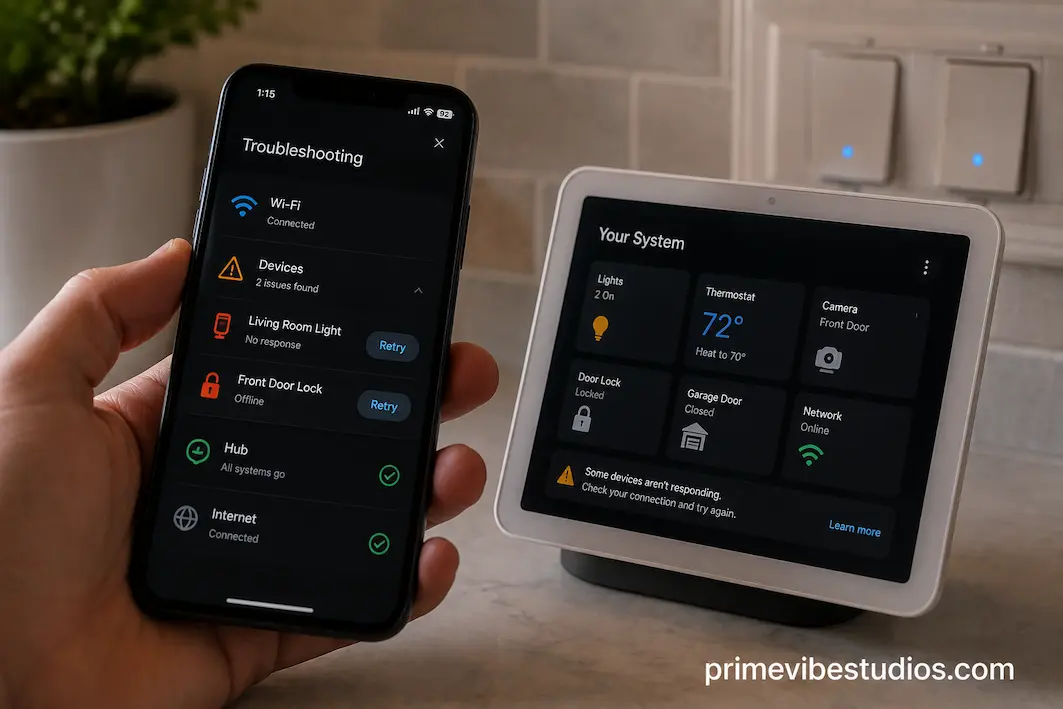
A smart home can feel almost effortless when everything is working properly. A motion sensor detects movement, a light turns on, a smart speaker responds to a command, and a routine handles several tasks without you touching anything. The appeal comes from getting different devices to behave like parts of one system rather than a collection of unrelated gadgets. Unfortunately, that convenience can disappear quickly when devices that used to work together suddenly stop responding, disappear from an app, or trigger the wrong actions.
The frustrating part is that a smart-home problem isn’t always caused by a broken device. A router update, changed Wi-Fi setting, expired account session, firmware update, renamed network, hub problem, or cloud-service issue can interrupt communication between otherwise perfectly healthy products. Sometimes only one automation fails while the individual devices still work normally. Other times, an entire group of devices becomes unavailable at once.
The right response is therefore not to immediately reset everything. A full reset can create more work and may erase routines, settings, or device configurations that took time to build. A better approach is to identify where communication stopped and then work through the problem one layer at a time.
First Find Out What Actually Stopped Working
Before changing anything, determine exactly what has failed.
If you have a smart bulb that no longer responds to a voice command, try controlling the bulb directly from its manufacturer’s app. If it works there but not through your main smart-home platform, the bulb itself may be fine and the problem may be somewhere between the two platforms.
The same principle applies to sensors, plugs, thermostats, speakers, and other devices. Test the individual device first, then test the automation or integration that connects it to other devices. This gives you a useful dividing line. If the device itself cannot be controlled, investigate its connection, power, firmware, or account. If it works independently but fails inside an automation, concentrate on the integration and routine.
This simple test can prevent you from resetting a perfectly healthy device simply because one layer of your smart home has stopped communicating with it.
Look For A Pattern
Pay attention to how many devices are affected and whether they belong to the same manufacturer or connection type. If every device connected through a particular hub disappears at once, that points toward the hub or its network connection rather than several devices failing simultaneously.
If only one smart plug has stopped responding while everything else works normally, the problem is much more likely to be local to that device. If devices from different manufacturers all become unavailable at approximately the same time, your network, account, hub, or central platform deserves closer attention.
The pattern is often more informative than the error message itself. A message saying that a device is “unavailable” doesn’t necessarily tell you why it became unavailable, but knowing that twenty devices disappeared immediately after a router restart gives you a much stronger clue.
Check The Simple Things Before Resetting Anything
Smart-home troubleshooting often becomes unnecessarily complicated because people skip the basic checks. Start by confirming that the affected devices actually have power. A smart plug can appear offline because the appliance connected to it has been switched off, while a battery-powered sensor may simply have run out of power.
For Wi-Fi devices, check whether the phone or computer you are using can connect to the same home network normally. If your phone is struggling to reach the internet or repeatedly switching between networks, there may be a broader network problem. Don’t assume that a smart-home app is responsible just because it happens to be the application displaying the error.
Then restart the affected device if it can be restarted safely. For a smart plug or light, that might mean switching power off and back on. For a hub, router, or bridge, use the manufacturer’s recommended restart procedure rather than repeatedly disconnecting cables.
These steps sound basic, but temporary connection problems are common. A device that has been running continuously for months may occasionally need a fresh connection to the network or its controlling service.
Check Whether Your Wi-Fi Network Changed
One of the most common reasons smart devices suddenly stop cooperating is a change to the home network.
If you recently replaced your router, changed the Wi-Fi name, changed the password, altered security settings, or created a new network, older devices may still be configured to use the previous settings. Some devices reconnect automatically, while others need to be configured again.
This becomes particularly confusing when only some devices stop working. Newer equipment may reconnect without intervention while older smart-home products remain offline.
If you recently changed your network, make a note of which devices were affected and whether they all depended on the previous configuration. That can save considerable time compared with troubleshooting each product individually.
You should also check whether the router is using settings that the affected device supports. Very old smart-home products can have compatibility limitations with newer wireless configurations, particularly when manufacturers change supported security modes or networking behavior.
Your Router May Be Connected But Still Causing Problems
A router can appear to be working perfectly while still creating problems for smart-home devices.
Your phone may browse websites normally because it has a strong connection, while an older sensor or smart appliance struggles to communicate reliably with the router. Smart-home devices can have different networking requirements from computers and phones, especially when they are designed to use little power or operate through older wireless standards.
Some routers also separate devices into different network segments. Guest networks, isolation settings, VLAN configurations, parental-control rules, and other features can prevent devices from communicating with one another even when all of them have internet access.
This is an important distinction: being connected to the internet does not necessarily mean devices can communicate with each other locally.
If a smart-home routine requires one device to trigger another, local communication may be essential. A network configuration that allows every device to reach the internet but prevents device-to-device communication can therefore break automations in surprising ways.
Don’t Ignore Router Updates
Router firmware updates can improve security and performance, but they can occasionally change how devices behave.
If your smart home stopped working immediately after a router update, write down the timing before making additional changes. The update may have changed a setting, restarted services, or altered compatibility behavior.
Check the router’s current configuration and look for settings that affect device isolation, wireless security, bands, or connected-device management. If you are not familiar with advanced networking settings, avoid changing several things at once. Record the original values first so you can return to them if necessary.
A useful troubleshooting process is one where every change has a reason behind it. Randomly changing five router settings makes it difficult to determine what actually solved the problem.
Check The Smart Home Hub Or Controller
If your setup uses a dedicated hub, bridge, or controller, check it before troubleshooting every individual device.
A hub can sit between your devices and the smart-home platform. If it loses power, network access, or communication with the account controlling it, several devices can appear to fail at the same time.
Check the hub’s status in the relevant application. Check whether it is online and whether the app reports any warnings. If it requires an update, follow the manufacturer’s instructions rather than interrupting the update process.
Restarting a hub can also help with temporary problems, but give it enough time to reconnect before concluding that it has failed. Some systems take several minutes to rediscover connected devices and restore their normal state.
If the hub itself cannot connect to the network, please focus on that issue first. There is little value in resetting twenty sensors when the central device connecting them to the rest of the network is offline.
A Hub Problem Can Look Like Many Device Problems
This principle is one of the most useful concepts in smart-home troubleshooting. Several devices failing simultaneously does not necessarily mean that several devices are broken.
Imagine that ten sensors communicate through the same hub. If the hub loses its network connection, the app might show all ten sensors as unavailable. From the app’s perspective, ten devices have disappeared, but the actual fault may be one central connection.
The same principle applies to bridges and integrations. Find the shared point before treating each device as an independent failure.
Check Your Smart Home Accounts
Smart-home platforms often depend on online accounts, and account problems can affect integrations without making the individual devices appear broken.
A password change, security verification, expired authorization, removed household member, or disconnected third-party service can interrupt communication between platforms.
For example, a device may still appear correctly inside its manufacturer’s application but stop responding when controlled through another smart-home service. That can indicate that the connection between the two accounts needs attention.
Open the relevant applications and check whether you have been signed out or asked to reauthorize a service. Look for notifications about account changes or disconnected integrations.
If you recently changed your password or enabled additional security controls, consider whether the change affected an existing connection. Some integrations require you to reconnect them after account-security changes.
An Integration Can Break Even When Both Apps Work
This is particularly important when your smart home combines products from different manufacturers.
You may have a lighting system managed through one app, a smart speaker controlled through another, and a central platform that connects them. Each service can be operating normally while the connection between them has failed.
In that situation, repeatedly reinstalling the light or speaker application won’t necessarily help.
Instead, verify the integration inside the platform that brings the devices together. Look for a disconnected service, authorization warning, or missing device permission.
If you reconnect an integration, give the platform time to rediscover the available devices. Avoid creating duplicate connections while troubleshooting because that can make your device list and automations even more confusing.
Review Your Automations
Sometimes the devices aren’t broken at all. The automation is the part that has stopped working.
A routine might depend on a particular device, condition, time schedule, location, or service. If one part of that chain changes, the routine may stop triggering even though all the individual devices remain controllable.
Open the automation and examine its trigger and conditions. Check whether the device referenced by the routine is still available under the same name. If you recently replaced or removed a device, the automation may still be pointing toward the old configuration.
Also look at conditions that can silently prevent an action. A routine might say “turn on the hallway light when motion is detected, but only between certain hours.” If the time condition, sensor status, or presence setting is wrong, the routine can appear broken even though the light itself works.
Testing each component separately can reveal where the chain stops.
Device Names Can Cause Unexpected Problems
Changing the name of a smart-home device seems harmless, but it can sometimes create confusion in voice commands and automations.
If you rename a light from “Kitchen Light” to “Counter Light,” check whether existing routines still reference it correctly. Different platforms handle renamed devices differently, and a device can sometimes appear under a new identifier after being removed and re-added.
Try to use clear, distinct names that describe both the device and its location. Avoid giving several devices nearly identical names.
A naming system becomes especially valuable as your smart home grows. “Lamp 1,” “Lamp 2,” and “Lamp 3” may make sense when you own three devices, but names such as “Living Room Floor Lamp” or “Bedroom Bedside Lamp” are easier to understand when creating routines months later.
Check Firmware Before Removing A Device
Manufacturers periodically update smart-home devices to improve security, fix bugs, and add compatibility.
An update can sometimes temporarily affect behavior, particularly if different components of your smart-home system are running incompatible versions.
Check whether the affected device, hub, or controller has a pending firmware update. If an update was recently installed, check the manufacturer’s support information for known issues rather than immediately assuming the hardware has failed.
Firmware updates should normally be allowed to complete without interruption. Avoid repeatedly disconnecting a device while it is updating, because interrupting certain update processes can create more serious problems.
When Removing And Re-Adding A Device Makes Sense
If you’ve confirmed that the network, hub, account, and integration are working, removing and re-adding the individual device can be a reasonable next step.
But don’t do it first.
Before removing anything, please check what will happen to its existing settings. Some devices preserve configuration through the manufacturer’s account, while others may require you to rebuild routines or preferences after you add them again.
Before you remove the device, please take screenshots or notes of any important settings. If the device is part of several automations, record those relationships so you can restore them afterward.
Then follow the manufacturer’s removal and setup process. Avoid using an unofficial reset procedure simply because you found it in a random forum. Different models can have different reset behavior.
The goal is to rebuild the connection cleanly, not just erase the device and hope it works again.
What If Several Devices From Different Brands Stop Working?
When devices from multiple manufacturers stop working together at approximately the same time, look for something they share.
That could be:
- the same Wi-Fi network
- the same router
- the same smart-home platform
- the same hub
- the same account
- the same voice assistant
- the same automation service
- a recent network or software change
This shared-dependency approach is much more efficient than troubleshooting products alphabetically.
If your smart lights, plugs, and sensors all stopped working after the router was replaced, the router configuration is a stronger suspect than three separate device failures.
Likewise, if everything stopped responding through one smart-home platform but continues working inside its manufacturer’s applications, investigate the platform or integration rather than the physical devices.
Don’t Forget About Service Outages
Cloud-based smart-home systems can experience service interruptions.
During an outage, devices may appear offline or commands may fail even though your home network is operating normally. If several unrelated devices stop working simultaneously, check the manufacturer’s service-status information or official support channels before performing major resets.
A temporary service issue does not require you to rebuild your entire smart home.
This is another reason not to immediately factory-reset devices. If the underlying service becomes available again later, you could end up with a collection of devices that need to be configured from scratch for no reason.
A Better Troubleshooting Order
When smart-home devices stop cooperating, work from the broadest possible cause down to the individual device.
Start by identifying whether one device, one group, or the entire system is affected. Then check power, network connectivity, router changes, hubs, accounts, integrations, firmware, and automations. Only after those layers look healthy should you consider removing and re-adding a device.
A useful sequence is:
1. Test the device directly.
See whether it works from its own application or physical controls.
2. Check the home network.
Confirm that the router and relevant Wi-Fi connection are functioning normally.
3. Look for recent changes.
Think about router replacements, password changes, updates, renamed devices, new network settings, or account changes.
4. Check shared components.
Inspect hubs, bridges, integrations, and central platforms.
5. Examine automations.
Make sure triggers, conditions, and device references are still valid.
6. Reconnect only what needs reconnecting.
Avoid resetting everything simultaneously.
This approach may take slightly longer than pressing a factory-reset button, but it gives you a much better chance of finding the actual cause.
How To Prevent The Same Problem Later
A little organization can make future troubleshooting dramatically easier.
Keep a simple record of the devices in your smart home, including their manufacturer, model, connection type, and the platform or hub they depend on. You don’t need a complicated spreadsheet. A basic list is enough to show you which devices share a common dependency.
It is also worth documenting important automations. If you have a routine involving five devices, note what triggers it and what actions it performs. This information becomes particularly useful if a device is replaced later.
Keep router and smart-home firmware reasonably current, use strong account security, and avoid making unnecessary network changes without recording the previous configuration. If you use several ecosystems, understand which platform acts as the central controller.
These habits don’t eliminate smart-home problems, but they make them much easier to diagnose when they occur.
Avoid Building A Chain You Can’t Troubleshoot
Adding more smart devices doesn’t automatically make a smart home better.
Every additional device, integration, hub, cloud service, and automation introduces another possible dependency. A sophisticated setup can be extremely useful, but it can also become difficult to understand when something fails.
Try to build routines that remain understandable. If turning on one light requires six integrations and several cloud services, there may be a simpler way to accomplish the same task.
This principle is especially important for essential functions. The more important a device is to your daily routine, the more valuable it is to have a straightforward fallback.
When A Smart Home Stops Feeling Smart
The real advantage of a connected home isn’t having dozens of devices; it is having those devices work together reliably enough that you don’t have to think about them. When that coordination breaks, the temptation is to start deleting devices, reinstalling applications, and resetting everything. That can make the situation considerably harder to recover from.
Instead, treat the smart home like a small network of connected layers. Start with the device, then examine its network connection, hub or controller, account, integration, and automation. Look for the point where communication stops rather than assuming the device at the end of the chain is defective.
Once you identify the shared dependency, many apparently complicated smart-home failures become much easier to understand. And if you keep a simple record of your devices and routines, the next problem won’t require starting from scratch. A smart home should make everyday life easier, and a setup that is understandable and recoverable is ultimately more useful than one that is simply packed with gadgets.