
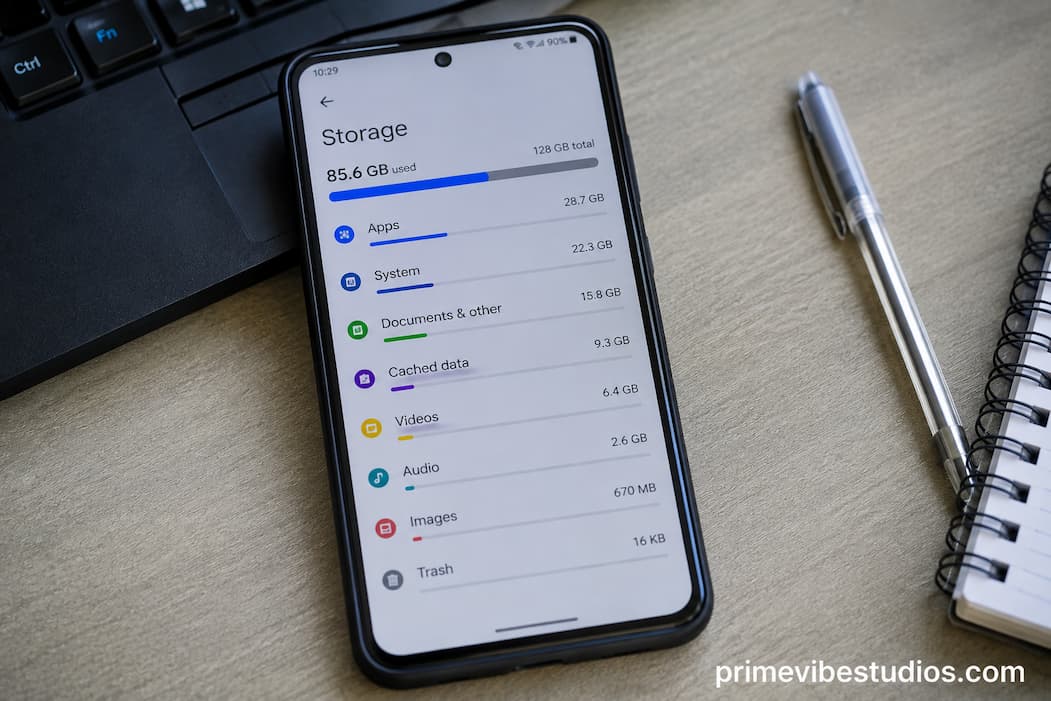
Deleting a large batch of photos can feel like an obvious way to free up space. You remove hundreds of pictures, empty the trash, and expect your available storage to increase immediately. Yet sometimes the storage number barely moves. In other cases, it improves for a while and then starts filling up again without you knowingly adding many new files.
That can be confusing because photos are easy to see, while many other types of data are hidden inside apps and system folders. Your phone may still be holding recently deleted pictures, video attachments from messaging apps, downloaded files, cached content, offline media, thumbnails, and application data. Cloud services can also make the situation less straightforward because removing a photo from one location does not always mean that every copy has disappeared.
The good news is that unexplained storage usage usually isn’t mysterious. Once you understand what your phone is actually counting as storage, you can investigate it without randomly deleting files or using aggressive “cleaner” apps.
Deleting a Photo Doesn’t Always Delete It Immediately
The first place to look is the Recently Deleted, Trash, or similarly named folder in your photo application.
Many phones deliberately keep deleted photos for a period of time. This allows you to recover something you removed by accident. Until that retention period expires—or until you manually empty the folder—the files may continue taking up storage.
This is particularly easy to overlook when deleting a large number of photos. You may see them disappear from your main gallery and assume the space has already been returned to the phone. In reality, the original files may still be sitting in a temporary deletion folder.
Open your photo app and check its deleted-items section. If you’re certain that you don’t need those files anymore, you can permanently remove them. Before doing so, make sure you understand whether the folder is synchronized with a cloud service, because deleting items permanently can have consequences beyond the local device.
This is one of the simplest explanations for why deleting photos doesn’t immediately produce the storage savings you expected.
Messaging Apps Can Keep Copies of Your Photos
Your gallery isn’t necessarily the only place where your pictures exist.
Messaging applications can store photos and videos that you sent or received in conversations. If someone sends you a picture and you later delete the copy from your gallery, another copy may still exist within the messaging application’s storage.
The same applies to videos, voice messages, documents, GIFs, stickers, and other attachments.
Group chats can make the issue particularly noticeable. A conversation that has been active for years may contain thousands of media files even if you rarely open them. Some applications automatically download incoming media, meaning your phone can accumulate files without you deliberately saving each one.
This is why deleting photos from your main gallery may not make as much difference as expected.
Check the storage-management section inside your messaging apps. Many provide a breakdown of which conversations or media categories are consuming the most space. This can be much more useful than manually scrolling through the gallery.
App Caches Can Grow Without You Noticing
Apps also create temporary files as you use them.
A streaming service may cache content. A browser can store website resources. Social media applications may retain images and videos that you’ve recently viewed. Maps can keep temporary or offline information. Editing applications may create previews and working files.
These caches are designed to make apps faster or reduce the need to repeatedly download the same information. They aren’t necessarily bad.
The problem is that some caches can become surprisingly large.
A phone that has been used for months or years can accumulate considerable temporary data across dozens of applications. If you’ve recently deleted a large number of photos but still don’t have much free space, check the phone’s storage breakdown and see whether apps are occupying more space than expected.
Don’t assume that every item labeled “cache” should be deleted immediately. Some systems manage cached data automatically, and clearing it can mean that an app has to download or rebuild information again later.
The useful question is whether the cache is unusually large or causing a genuine storage problem.
Downloads Are Easy to Forget
The Downloads folder is another common source of hidden storage use.
You may have downloaded:
- PDF documents
- images
- videos
- ZIP files
- installation packages
- presentations
- audio files
- documents from messaging apps
- files from websites
Some downloads are used once and then forgotten.
A file doesn’t become irrelevant simply because it isn’t visible in your photo gallery. Your phone’s storage system counts it just like any other file.
Open your file manager and inspect the Downloads folder. Sort files by size where possible. Large files will immediately stand out, making it easier to decide what should stay and what can be removed.
This is often more effective than repeatedly deleting small photos because a few forgotten videos or large documents can consume more space than hundreds of ordinary pictures.
Offline Content Can Take Up a Lot of Space
Many modern apps allow you to download content for use without an internet connection.
Music services can store albums offline. Video applications can download movies or shows. Podcast apps can accumulate episodes. Navigation applications can store offline maps.
These downloads are useful when you’re traveling or dealing with unreliable connectivity, but they can become forgotten storage consumers.
The important thing is that offline content may not appear in your regular gallery or Downloads folder. The application itself may control the files.
If your phone says an entertainment or navigation app is using several gigabytes, open that app and look for its offline-content settings. You may find downloaded material that you no longer need.
This is particularly worth checking if your storage problem developed gradually rather than immediately after taking a large number of new photos.
Cloud Photos Don’t Always Mean Zero Local Storage
Cloud backup can make storage behavior confusing.
You might assume that once your photos have been uploaded to a cloud service, the original full-resolution files no longer occupy meaningful space on the phone. In practice, the exact behavior depends on the service and its settings.
Some services can replace local originals with smaller versions or remove local copies when you specifically choose a storage-saving option. Others may continue keeping local copies, cached previews, or recently accessed content.
There can also be synchronization settings that cause files to remain available locally.
Before deleting anything manually, understand how your particular cloud-photo service works. A file being visible in a cloud library doesn’t necessarily tell you whether a full local copy remains on the phone.
This is especially important if you use more than one photo backup service. You could have overlapping local and cloud copies without realizing it.
Thumbnails and Preview Files Are Usually Not the Main Problem
Phones often create smaller versions of images so galleries and file managers can display content quickly.
These thumbnails and previews can occupy some storage, but they are usually not the first place to look when you’re missing several gigabytes.
Modern operating systems generally manage these files automatically. Manually hunting for thumbnail folders can create more confusion than benefit, especially if the phone rebuilds them later.
If you’re short on storage, start with the largest categories shown in the system’s storage breakdown. A multi-gigabyte video collection, messaging archive, offline download, or application is usually far more significant than a collection of small preview images.
In other words, don’t spend an hour trying to remove tiny hidden files when one forgotten download might be responsible for most of the problem.
Video Is Often the Real Storage Problem
People frequently think about photos when they investigate storage, but video can consume dramatically more space.
A single long high-resolution video can occupy hundreds of megabytes or more. Several videos recorded with a high-quality camera setting can therefore consume storage much faster than ordinary photographs.
If you’ve been deleting photos without seeing a major improvement, check your videos separately.
Look for:
- long recordings
- duplicate clips
- screen recordings
- downloaded videos
- messaging attachments
- edited versions
- slow-motion footage
- unused exports from video-editing apps
Screen recordings are especially easy to overlook because you may have created them for a temporary purpose and forgotten about them afterward.
Editing Apps Can Leave Behind Working Files
Photo and video editing applications can create additional data while you work.
Suppose you import a large video, edit it, and export the finished version. Depending on the application, the original media, project information, preview files, cached versions, and exported copy may all remain on the device.
This means one piece of content can effectively exist in several forms.
The same thing can happen with document editors, graphic-design applications, audio software, and other tools that work with large files.
If a particular editing application is taking up several gigabytes, don’t immediately delete its data. First open the application and look for projects, drafts, downloads, or cached media that you no longer need.
Deleting an app’s stored data can sometimes remove unfinished projects or locally stored files, so it is worth understanding what will be lost before pressing a cleanup button.
Your Browser Can Accumulate More Than You Expect
Web browsers also store local information.
This can include cached website files, downloaded content, offline data, cookies, browsing data, and other site-related information.
For most people, browser storage isn’t going to explain a sudden loss of tens of gigabytes. But if the browser has accumulated a substantial amount of data over a long period, it can become worth investigating.
You should also be careful about clearing everything indiscriminately. Removing cookies and site data can sign you out of websites and delete certain preferences.
If storage is tight, review what the browser is actually using before deciding what to remove.
System Data Is More Complicated
At some point, you may notice a large category called something like System, System Data, or Other.
This category can include operating-system files, logs, temporary data, caches, update-related files, indexing information, and other material that doesn’t fit neatly into categories such as photos or applications.
The exact definition varies by operating system and manufacturer.
A large system-data category doesn’t automatically mean something is wrong. It can change over time as the phone performs maintenance and removes temporary files.
If it suddenly becomes unusually large and remains that way, restarting the phone and installing available system updates may help. If the category continues growing abnormally, the manufacturer’s support documentation or diagnostic tools may provide more useful information than third-party cleaning applications.
How to Find What’s Really Using Your Storage
The best approach is to start with the phone’s built-in storage screen.
Don’t begin by deleting random files.
Look at the categories and determine where the largest amounts of storage are going. Depending on your device, you may see categories such as:
| Storage category | What may be included |
|---|---|
| Photos & videos | Camera files, screenshots and recordings |
| Apps | Installed applications and their data |
| Messages | Conversations and media attachments |
| Downloads | Files downloaded from websites and apps |
| Music/video | Offline entertainment |
| System | Operating-system files and related data |
| Other/System data | Temporary and system-managed information |
The exact categories vary between phones, so don’t worry if your device uses different names.
The important part is to follow the largest number first.
If Apps consume 40 GB and Photos consume 10 GB, deleting another thousand small photographs probably isn’t the best solution.
A Safer Way to Free Up Space
Once you’ve identified the biggest storage consumers, work from the safest changes to the more consequential ones.
Start with files you know you don’t need. Old downloads, duplicate videos, unused offline media, and unnecessary screen recordings are usually straightforward.
Then examine applications that have accumulated large amounts of data. Before removing anything, check whether the application stores important information locally.
For photos, make sure important memories are backed up before permanently deleting them. Don’t assume that a cloud icon automatically means you have a complete backup unless you’ve verified it.
Finally, avoid using aggressive storage-cleaning apps that promise to remove huge amounts of “junk” with one tap. Some can be useful in specific situations, but blindly deleting application data or system files can create new problems.
Your phone’s built-in storage tools are generally the best place to begin because they show you how the operating system itself is categorizing the space.
Why Storage Sometimes Fills Up Again
You may successfully free 10 GB and then discover that the phone is nearly full again a few weeks later.
That doesn’t necessarily mean the cleanup failed.
If you regularly receive videos through messaging apps, download offline entertainment, record high-resolution video, use large editing projects, or install resource-heavy applications, the same pattern will naturally return.
The long-term solution is therefore not always another cleanup.
Sometimes the better solution is changing how the phone handles storage. Turn off automatic downloads that you don’t need, review offline media periodically, remove unused applications, transfer large files when appropriate, and monitor the storage indicator before it reaches a point where the phone struggles.
A phone with a small amount of free space can also become inconvenient to use because applications and the operating system may need temporary working space.
The Important Thing to Remember
Deleting photos is only one part of managing phone storage.
Your device may also be holding deleted items in a temporary folder, copies of media inside messaging applications, cached content, downloads, offline entertainment, editing projects, screen recordings, application data, and system-managed files. Cloud synchronization can add another layer of complexity.
The easiest way to avoid guessing is to check the storage breakdown and investigate the largest category first. If photos are genuinely responsible for most of the space, clean them carefully. If an app, video collection, or messaging archive is responsible, deal with that instead.
Most importantly, don’t delete files simply because they are hidden. First find out what they are, whether you still need them, and whether another copy exists.
That turns storage cleanup from a frustrating search for mysterious files into a simple process: identify what is large, understand why it is there, and remove only what you can safely live without.