
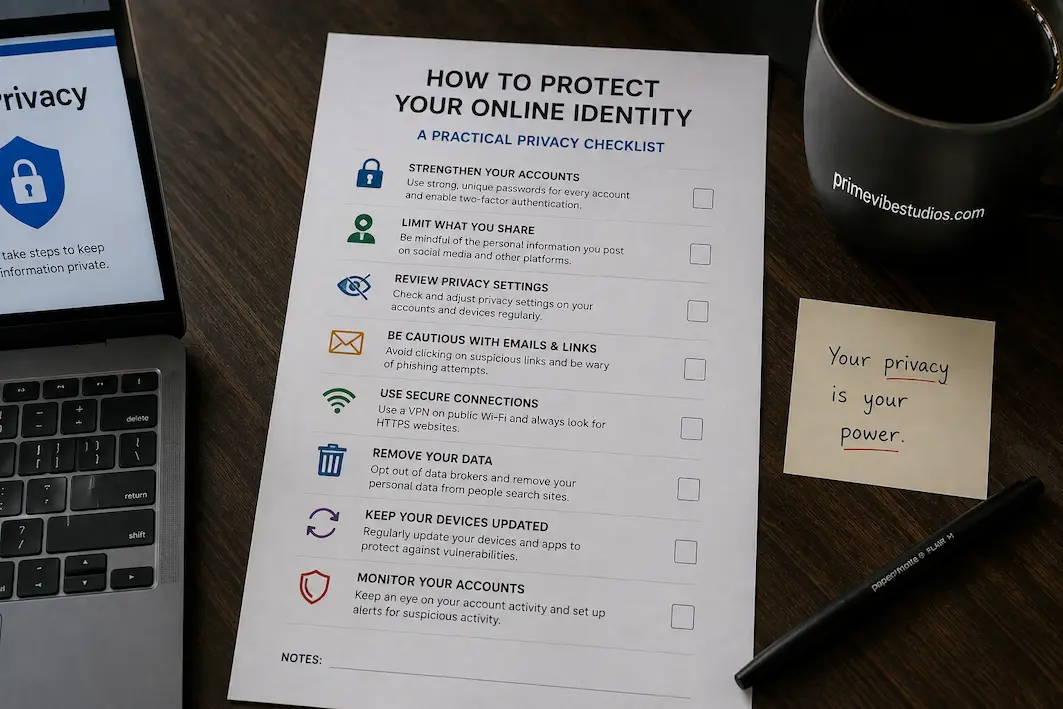
Your online identity is made up of far more than a username and password. Every time you create an account, make a purchase, post a photograph, install an app, join a mailing list, or browse a website, you leave pieces of information behind. Some of those details are harmless on their own, but when enough of them are connected, they can reveal a surprisingly detailed picture of who you are, what you do, where you spend time, and which services you use.
Protecting your online identity doesn’t mean disappearing from the internet or refusing to use modern technology. It means becoming more deliberate about what information you share, which accounts you maintain, and who gets access to your data. A few strong habits can reduce unnecessary exposure without making everyday internet use inconvenient.
The most effective privacy improvements are often surprisingly ordinary. Using unique passwords, securing your email account, limiting unnecessary app permissions, reviewing old accounts, controlling browser tracking, and being cautious about suspicious messages can collectively make a much bigger difference than relying on one privacy tool. The following checklist is designed to help you work through those areas one at a time.
Begin With Your Most Important Account
Before you change dozens of settings, secure the account that you could use to recover your other accounts. For many people, that’s their primary email account. If someone gains access to your email, they may be able to request password resets for shopping accounts, social networks, cloud storage, subscriptions, and other services connected to that address.
Use a strong, unique password for the account and enable multi-factor authentication if the provider offers it. Then review recent sign-ins, connected devices, recovery email addresses, phone numbers, and other security settings. If you see a device or change you don’t recognize, investigate it rather than simply dismissing it as a technical glitch.
Once your main email account is secure, you can then move on to your other important accounts. This gives you a solid foundation because your recovery channel is protected before you begin changing other credentials.
Stop Reusing The Same Password
Password reuse remains one of the simplest ways for a problem with one account to become a problem with several others. If a password from an old website becomes exposed, someone who obtains it may try the same credentials on email, social media, shopping, financial, or other services.
Your most important accounts should use passwords that you don’t use anywhere else. You don’t need to memorize dozens of complicated combinations yourself. A reputable password manager can generate and store unique passwords while allowing you to remember one strong master credential.
When changing passwords, don’t simply add a number or symbol to an old password and call it new. Use genuinely different credentials. Also change passwords on accounts where you previously reused credentials, even if you haven’t seen evidence of suspicious activity.
Turn On Multi-Factor Authentication
A password is only one layer of account protection. Multi-factor authentication adds another step that can make an account harder to access even if someone discovers the password.
Depending on the service, the additional verification may involve an authenticator application, passkey, security key, text message, or another method. The strongest option varies by service and your circumstances, but using an additional authentication factor is generally better than relying on a password alone.
Pay particular attention to your email, cloud storage, social-media accounts, and other services that contain valuable personal information. Also make sure you understand the recovery process. Security features are most useful when you can still regain access to your own account if you lose a device.
Clean Up Accounts You No Longer Use
Old online accounts are easy to forget. You may have created an account years ago to download something, enter a promotion, try a service, make one purchase, or participate in a community you no longer visit.
These accounts can contain old personal information and may remain vulnerable if you haven’t updated their passwords or security settings. Make a list of services you no longer use and decide whether they are worth keeping.
If you don’t need an account, deleting it can reduce the amount of information you leave behind. Where deletion isn’t possible, remove unnecessary profile information and close connected services where practical. Fewer active accounts mean fewer places where your personal information can remain exposed.
Think Before Sharing Personal Details
Not every website needs to know everything about you. When creating a profile, please consider which information is actually required and which details are optional.
Your full birth date, home address, phone number, workplace, daily routine, and other identifying information can sometimes be useful for legitimate purposes, but sharing them publicly can also make it easier for strangers to build a profile around you.
This doesn’t mean entering false information on services that genuinely require accurate details. Instead, avoid voluntarily publishing information that isn’t necessary. On social platforms, review what is visible to people outside your immediate circle and consider whether old posts still need to be public.
Review Your Social Media Footprint
Social media can reveal more than a person realizes because individual posts can combine into a much larger picture. A photograph might reveal a location, a routine can reveal when you’re normally away from home, and an old profile may contain information you no longer want strangers to see.
When you have time, please review your older posts. Remove unnecessarily public information, review audience settings, and check which applications or websites are connected to your social accounts.
Also consider what other people can see when they search your name. Your public profile may include information that you forgot was visible. Privacy settings aren’t permanent; platforms change their interfaces and policies, so reviewing them periodically is worthwhile.
Be More Selective With Public Profiles
A public profile can be useful for professional networking, hobbies, communities, or creative work, but you don’t necessarily need to expose the same information everywhere.
Consider separating information that you need for professional purposes from personal details that don’t need to be public. For example, a public profile may need a name, professional description, or portfolio, while your private contact information doesn’t necessarily belong there.
Also be cautious about usernames that you reuse across many platforms. Using the same distinctive username everywhere can make it easier for someone to connect accounts that you intended to keep separate.
Review Your Phone’s Privacy Settings
Your smartphone is often the center of your digital life, which makes its privacy settings particularly important. Applications may request access to location, contacts, photos, camera, microphone, files, notifications, Bluetooth, or nearby devices.
Open your phone’s privacy or permission settings and review which applications have access to sensitive features. Ask whether each permission is genuinely necessary for how you use that app. A navigation application may need location, while a simple flashlight application shouldn’t need access to your contacts.
You don’t need to deny every permission. The goal is to match access with actual functionality. If an app can perform its useful functions without a particular permission, there’s little reason to grant that access simply because it asked.
Pay Attention To Your Browser
Your browser is one of the main tools through which websites interact with you, and its settings can affect how much information websites can collect or store.
Review cookie settings, site permissions, saved passwords, autofill information, notification permissions, and browsing data. If your browser offers privacy controls that limit cross-site tracking or similar mechanisms, understand what they do and enable them according to your preferences.
Please remove any website permissions that you no longer need. You may have allowed a site to send notifications, access your location, or use another browser feature months ago and forgotten about it. Cleaning up old permissions can reduce unnecessary access.
Understand What Private Browsing Does
Private or incognito browsing can be useful, but it is frequently misunderstood. It generally prevents the browser from retaining certain local browsing information after the private session ends. It does not make you invisible to every website, network operator, employer, internet service provider, or online service.
Use private browsing when you want to avoid leaving certain browsing history or cookies on a shared device, but don’t treat it as a complete privacy solution.
Online privacy requires multiple layers. Browser settings, account security, careful sharing, and awareness of tracking all play different roles.
Reduce Unnecessary Tracking
Many websites use cookies and other technologies to remember preferences, measure traffic, personalize experiences, or support advertising. Some tracking is useful, while other forms can follow activity across different sites or services.
When a website presents privacy choices, take a moment to understand what you’re accepting instead of automatically choosing the broadest option. Some sites provide ways to reject optional tracking while still allowing essential functions to work.
You can also review browser privacy settings and use tools provided by your browser to limit certain forms of tracking. Keep in mind that no single setting eliminates all online tracking, so think of these controls as ways to reduce unnecessary collection rather than a guarantee of complete anonymity.
Be Careful With Email
Email remains one of the most common ways scammers attempt to steal account credentials and personal information. A message can look convincing while leading to a fake login page designed to capture your password.
Don’t click links simply because an email appears to come from a familiar company. Check the sender carefully, look at the destination before following a link when appropriate, and consider opening the company’s official website or app directly instead.
Be especially cautious when a message creates urgency. Claims such as “your account will be closed today” or “verify your payment immediately” are common ways of encouraging people to act before thinking.
Never Share Verification Codes
Authentication codes should be treated almost like passwords. If someone asks you to read a verification code to them over the phone, through a message, or through another channel, stop and verify what is happening.
Legitimate services may send you a code because you initiated a login or account-recovery process. That doesn’t mean another person is entitled to receive the code.
Scammers sometimes already know your username, email address, or even your password. They then attempt to trick you into providing the second piece of information. Keeping authentication codes private prevents this particular tactic from succeeding.
Be Careful With Public Wi-Fi
Public Wi-Fi isn’t automatically dangerous, but unfamiliar networks deserve caution. Avoid assuming that a network with a familiar-looking name is legitimate, particularly in busy public places where fake hotspots can sometimes be created.
When using public networks, keep your device’s software updated and avoid entering sensitive information through suspicious websites or applications. Make sure you’re connecting to the legitimate network provided by the venue when possible.
For highly sensitive tasks, using your mobile connection or another trusted network may be preferable. A VPN can also provide useful protection in some situations, but it shouldn’t be treated as a substitute for secure accounts and good browsing habits.
Review Connected Apps And Services
You may have given websites permission to connect to your Google, Apple, Microsoft, social-media, or other accounts without remembering it.
These connections can remain active long after you stop using the service. Review the list of connected applications in your important accounts and remove access you no longer need.
This is particularly useful for old productivity tools, games, websites, browser extensions, and services you tried once and never returned to. Removing unused connections reduces the number of external services that can interact with your account.
Don’t Ignore Browser Extensions
Browser extensions can be extremely useful, but they can also have access to information on websites you visit depending on the permissions they receive.
Go through your installed extensions and remove anything you don’t recognize or no longer use. For extensions you keep, review their permissions and developer information.
An extension that has broad access to websites can potentially see more browsing activity than a simple extension with narrowly defined permissions. Install extensions only from reputable sources and avoid accumulating large collections of tools that you rarely use.
Protect Your Personal Photos And Documents
Photos and documents can contain information that is easy to overlook. A photograph might show an address, identification document, boarding pass, workplace, school, or other details in the background.
Before uploading something publicly, take a moment to consider what the image actually reveals. The same applies to screenshots. A screenshot of a purchase, reservation, account page, or conversation may contain names, confirmation numbers, email addresses, or other information.
Keep sensitive documents in appropriately protected storage and avoid leaving unnecessary copies scattered across downloads folders, messaging apps, email accounts, and cloud services.
Keep Your Devices Updated
Security updates aren’t the most exciting part of digital privacy, but they are important. Operating-system and application updates can address security weaknesses and improve the way devices handle threats.
Turn on automatic updates where appropriate and don’t routinely postpone important security updates. The same principle applies to your computer, tablet, browser, router, and other connected devices.
An outdated device can undermine otherwise good privacy habits. You can have excellent passwords and careful browsing habits while still leaving known software weaknesses unaddressed.
Don’t Overshare Your Location
Location information can sometimes reveal more than a person intends. Posting a photograph while you’re away from home, sharing your daily routine publicly, or repeatedly checking in at the same places can create a detailed picture of your movements.
You don’t need to stop sharing travel photographs or enjoying location-based services. Instead, think about timing and audience. Sharing a vacation after returning home can reveal less about your current whereabouts than posting every location in real time.
Review location-sharing features on social networks and messaging applications and disable them when you don’t need them.
Use A Separate Email Address For Less Important Services
Not every website needs to have the same connection to your primary email account. Using separate email addresses or aliases for newsletters, shopping, registrations, and other lower-priority services can make your digital life easier to organize.
This can also make it easier to identify where unwanted messages originated. If a particular address starts receiving a large volume of promotional or suspicious mail after you used it for a service, you’ll have a better idea of where that information may have been shared.
You should still secure every account you create. Separate addresses are an organizational and privacy tool, not a replacement for strong passwords and authentication.
Make Backups Part Of Your Privacy Plan
Backups are usually discussed as protection against hardware failure, but they also matter when a device is lost, stolen, or compromised. If your important photographs, documents, and contacts exist only on one phone, losing that phone can create a second problem.
Use a reputable backup or cloud-storage service and understand what information is being synchronized. Protect the account controlling those backups with a strong password and additional authentication.
A backup is most useful when you can actually restore from it. Periodically check that important information is being backed up correctly rather than assuming the feature is working simply because it is enabled.
Your Online Identity Is A Collection Of Small Decisions
There isn’t one magic setting that makes your online identity private. Privacy comes from dozens of small decisions made across your devices, accounts, browsers, applications, and social profiles.
You don’t need to change everything in one day. Start with your primary email account, important passwords, authentication methods, phone permissions, and old accounts. Once those areas are under control, move on to browser settings, social profiles, connected applications, and less obvious sources of exposure.
The process becomes much easier when you treat privacy as routine maintenance rather than an emergency project.
A Practical Privacy Checklist
Use this checklist as a quick starting point and work through it at your own pace:
- Use a unique password for your primary email account.
- Enable multi-factor authentication on important accounts.
- Review recent account logins and connected devices.
- Delete old accounts you no longer need.
- Remove unnecessary third-party account connections.
- Review app permissions on your phone.
- Remove unused applications and browser extensions.
- Check your social-media privacy settings.
- Limit unnecessary location sharing.
- Review browser cookies and site permissions.
- Be cautious with unexpected emails and messages.
- Never share authentication or verification codes.
- Keep phones, computers, browsers, and apps updated.
- Back up important photographs and documents.
- Avoid publicly sharing sensitive personal information.
- Review your online presence periodically.
You don’t have to complete the entire list at once. Even making progress on the first few items can significantly improve the basic security of your digital accounts.
Frequently Asked Questions
Does Using A VPN Make My Online Identity Private?
A VPN can help protect network traffic in certain situations and can be useful when connecting through networks you don’t fully trust. However, it doesn’t make your entire online identity anonymous. Websites can still identify you through accounts, cookies, browser characteristics, and other methods. A VPN is therefore one privacy tool rather than a complete solution.
How Can I Tell If My Personal Information Is Already Online?
Search for your name, commonly used usernames, and other non-sensitive identifiers to see what information is publicly visible. You may discover old profiles, forum posts, social-media pages, or other accounts you forgot about. Don’t enter sensitive information into questionable websites claiming to provide identity reports. Start with ordinary search results and the privacy settings of services you already use.
Should I Delete Old Social Media Posts?
If old posts reveal information you no longer want publicly available, reviewing or deleting them can be worthwhile. You don’t necessarily need to remove everything. Focus on posts containing personal contact details, location information, travel plans, workplace information, or other details that you wouldn’t want strangers to easily connect to you.
Is It Safe To Save Passwords In A Password Manager?
A reputable password manager can make it much easier to use unique passwords for different accounts, which is an important security advantage. The service you choose matters, as does protecting the account with a strong master credential and additional authentication when available. Avoid choosing a password manager solely because it is free or heavily advertised; research its security and reputation first.
How Often Should I Review My Privacy Settings?
A full privacy review every few months is a reasonable habit, while smaller checks can happen whenever you install new apps, create important accounts, or notice a major change to a service. Privacy settings can change when platforms redesign their applications, so periodically checking them helps prevent old choices from becoming permanent simply because you forgot about them.
Privacy Works Best As A Habit
Protecting your online identity isn’t about becoming paranoid or avoiding the internet. It’s about understanding that personal information has value and deciding where you are comfortable sharing it. Most people don’t need to completely change the way they use technology. They simply need to become a little more selective about what they allow, what they publish, and which accounts they continue to maintain.
Start with the areas that would matter most if something went wrong. Secure your primary email, use unique passwords, enable additional authentication, remove old accounts, and review the permissions and connections on your devices. Then gradually work outward toward browsers, social media, cloud services, and other parts of your digital life.
The strongest privacy setup isn’t necessarily the one with the most complicated tools. It’s the one you understand well enough to maintain. A few minutes spent reviewing your accounts and privacy settings today can reduce unnecessary exposure and make your online identity considerably harder to misuse tomorrow.