
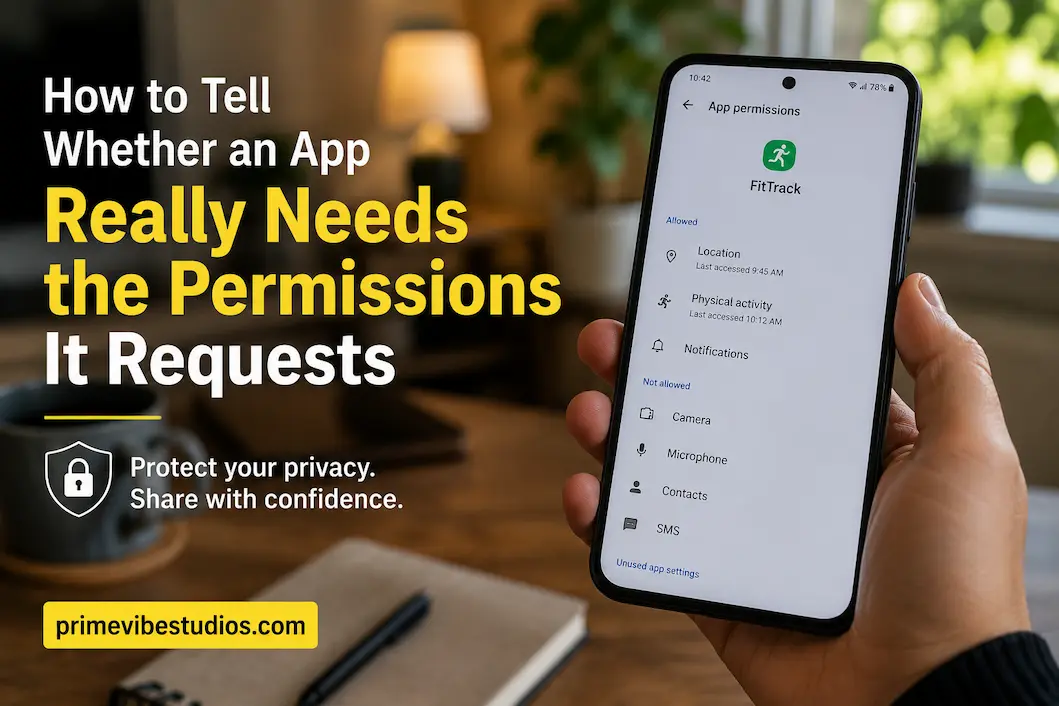
When you install an app, the permission request can appear almost immediately. It may ask to access your camera, microphone, contacts, location, photos, files, or notifications, sometimes before you’ve even chanced to understand what the app actually does. Many people simply tap “Allow” because they want to get through the setup process, while others deny everything without considering whether a particular permission is necessary for the feature they want to use.
Neither approach is ideal. Some permissions are essential for an app to perform its main function, while others may only support optional features. A navigation app needs access to your location if you want live directions based on where you are, for example, but a simple calculator has little obvious reason to know your location. The important skill is learning to connect a requested permission to a specific feature, rather than treating every permission request as equally reasonable or suspicious.
You also don’t need to understand technical security terminology to make better decisions. A few practical questions can help you evaluate most requests: What does the app do, exactly? What feature requires this permission? Does the app still work without it? Is the permission needed all the time or only occasionally? Once you start asking those questions, permission screens become much easier to interpret.
Start With The App’s Main Purpose
The simplest way to evaluate a permission is to compare it with what the app is designed to do. Think about the central function you downloaded it for and ask what information or hardware that function genuinely requires. A navigation application and a photo-editing application will naturally need different types of access because they perform very different jobs.
For example, a video-calling application may reasonably request microphone and camera access because those are central to making a video call. A document-scanning app may need access to the camera to capture documents. A fitness application may request motion or location information for particular tracking features. These requests aren’t automatically safe simply because they sound reasonable, but there is an obvious connection between the permission and the feature.
Problems become more noticeable when the requested access has no clear relationship to the app’s purpose. If a basic flashlight application asks for contacts, a microphone, and extensive access to personal files, there is a reasonable reason to pause and investigate. The permission itself doesn’t prove that the app is malicious, but the lack of a clear connection is a useful warning sign.
Ask One Simple Question
Whenever a permission appears, ask yourself: “What does this app need this information for?”
You don’t need to find a complicated technical explanation. If you can describe a legitimate feature that requires the permission, the request may make sense. If you cannot think of any reasonable use after considering the app’s main purpose, there is little reason to grant access automatically.
This simple habit is especially useful when installing unfamiliar applications. You should start treating permission requests as decisions about what information or hardware the application can access, rather than as part of the installation process that you quickly approve.
Not Every Permission Is Needed Immediately
An important detail is that an app may request access for a feature you aren’t currently using. That doesn’t necessarily mean the developer is trying to collect unnecessary information, but it does mean you don’t always need to grant the permission immediately.
Suppose you install an image-editing application that can also record videos. If you only want to edit photographs already stored on your device, you may not need to give the application camera access at that moment. You can deny the request and grant it later if you decide to use the recording feature.
Modern smartphones often allow permissions to be changed later, although the exact choices vary between operating systems and app versions. This means you can sometimes take a “grant when needed” approach instead of giving an application every permission during its first launch.
Think In Terms Of Features
Instead of asking whether an app deserves complete access, ask which specific feature you’re trying to use.
A messaging application may need microphone access when you record a voice message, but that doesn’t mean you have to grant every available permission simply because the application offers several features. A shopping app might need location for finding nearby stores, while its basic browsing function may work perfectly without location access.
This approach lets you use permissions more selectively. You aren’t declaring an application trustworthy or untrustworthy forever. You’re deciding what access makes sense for the task you want to perform right now.
Understand The Difference Between Necessary And Optional Access
Some permissions are closely tied to an app’s core function, while others support convenience features. Distinguishing between the two can make permission decisions much easier.
Consider a weather application. If you want it to automatically display the weather based on your current location, location access can provide an obvious benefit. But if you are comfortable entering a city manually, the app may not need continuous access to your location for that particular use.
The same principle applies to many other applications. A recipe app might request camera access because it can scan recipes, but you may never use that feature. A social platform may ask for access to your contacts to help you find friends, but you can opt out of using contact discovery. An application can legitimately offer a feature even if that feature is not necessary for every user.
Location Permissions Deserve Extra Attention
Location information can reveal more about your routine than a single piece of data might suggest. Repeated location access can potentially indicate places you visit, travel patterns, or approximate daily routines. That’s why it is worth considering carefully rather than automatically granting it whenever an application asks.
If an app needs your location for a feature you actually use, check what permission options your device offers. Depending on the operating system and application, you may be able to allow location access only while using the app, allow it temporarily, or provide broader access.
The most appropriate choice depends on what the application needs to accomplish. A navigation app providing turn-by-turn directions has a stronger reason for location access while you’re using it than an unrelated application that merely wants to personalize content based on where you are.
Ask Whether Continuous Access Makes Sense
Even when a permission is reasonable, you can question how often the app needs it.
An application might need location while you actively use a feature, but that doesn’t automatically mean it needs access while running in the background. The same thinking applies to other sensitive permissions where your device provides different levels of control.
When you see a choice between limited access and broader access, consider whether the broader option provides a feature you actually need. If it doesn’t, the more restrictive setting may be the better fit.
Be Careful With Contacts, Photos, And Files
Contacts can contain information about other people, not just you. Granting an application access to your address book can potentially expose names, phone numbers, email addresses, and other stored details depending on the platform and how the app handles the data.
There are legitimate reasons for contact access. A messaging app may use it to help you find people you already know, for example. But if an application has no obvious contact-related function, you should question why it needs that information.
Photo and file permissions deserve similar consideration. An application that edits photographs may reasonably need access to selected images. A document application may need access to files you choose to upload. When your phone gives you an option to share only specific items rather than an entire library, that can be a useful way to limit access.
Avoid Granting Broad Access Just For Convenience
Occasionally an app asks for broad access because it makes the developer’s implementation easier, but that doesn’t mean you have to accept the broadest option available.
If you only want to upload one photograph, consider whether you can give the app access to that photograph rather than your entire photo collection. If you only need to open a particular document, look for a system file picker that lets you select it directly.
The more selective approach can take a few extra seconds, but it reduces the amount of information an application can access unnecessarily. It also gives you more control if you later decide that you no longer trust or use the app.
Microphone And Camera Requests Need Context
Camera and microphone permissions can understandably make people uncomfortable because these involve hardware that can capture information from your surroundings. However, the presence of these permissions alone does not prove that an application is secretly recording you.
The important question is why the app needs the hardware. A video-chat application, camera app, barcode scanner, voice recorder, or translation tool may have a straightforward reason to request camera or microphone access. A simple application with no feature involving audio or images deserves more scrutiny.
Your device may also provide visual indicators when the camera or microphone is actively being used. Pay attention to those indicators and investigate unexpected activity rather than assuming that every permission request means continuous recording.
Don’t Confuse Permission With Constant Use
Giving an application permission to use the microphone doesn’t necessarily mean the microphone is being used continuously.
Permission generally determines whether the application is allowed to access a particular capability under the conditions established by the operating system. Actual use is a separate matter.
This distinction is useful because it prevents unnecessary panic while still encouraging sensible privacy practices. You can allow a video-calling app to use the microphone when needed while reviewing the permission later if you stop using the app.
Review Permissions After Installation
Permission decisions shouldn’t end when you tap “Allow” during installation. Apps can change over time, and your own usage can change as well.
An application you used regularly six months ago may now sit untouched on your phone. If you no longer use it, there may be little reason for it to retain access to sensitive information or device features. Periodically reviewing permissions can therefore be more useful than trying to make a perfect decision every time you install something.
Open your phone’s privacy or app-permission settings and look through applications with access to sensitive categories such as location, camera, microphone, contacts, and files. The exact menus differ between devices, so look for the privacy or permissions section in your system settings.
Review Unused Apps First
You don’t have to check every application on your phone all at once.
Start with apps you don’t remember installing, apps you haven’t used in months, and applications that have access to particularly sensitive information. If you no longer need an application, uninstalling it removes the need to manage its permissions altogether.
For apps you still use, check whether their current access matches the features you actually use. You may discover that several permissions were granted during setup but have never been necessary.
Watch How An App Explains Its Permission Requests
A trustworthy application should generally be able to explain why it wants access to sensitive features. The explanation doesn’t need to be lengthy, but it should make sense in relation to what the app does.
Be cautious when an app provides no meaningful explanation and immediately pressures you to grant access. A message suggesting that you “must allow everything” without explaining which feature requires each permission is not a good reason to give broad access.
Also pay attention to whether the app continues to work when you deny an optional permission. If a feature stops working, that may be understandable if the permission was genuinely required. If the entire app becomes unusable because you declined access to something unrelated to its main function, you may want to reconsider whether the application is worth using.
Don’t Assume A Popular App Needs Everything
Popularity doesn’t automatically justify broad permissions.
A well-known application can have legitimate reasons for requesting certain information, but you should still understand what you’re allowing. Likewise, an unfamiliar app isn’t automatically dangerous simply because it asks for a permission that initially seems unusual.
Consider the combination of the app’s purpose, the requested access, the feature you’re trying to use, and the choices provided by your device. Looking at all four gives you a much better basis for a decision than relying solely on whether the app has many downloads.
Check The App’s Privacy Information
When a permission request seems difficult to understand, the application’s privacy information can provide additional context. Look for information on what categories of data the app collects, why it collects them, how it uses the information, and whether it shares it with other companies or services.
Privacy policies can be long and difficult to read, so you don’t necessarily need to study every sentence. Focus on the sections dealing with the information that concerns you most. If you’re deciding whether to grant location access, for example, look for the application’s explanation of how location information is collected and used.
The privacy information doesn’t guarantee that an app will behave exactly as you expect, but it gives you more context for evaluating the request. If the explanation is extremely vague or doesn’t match the app’s visible functionality, that may be a reason to investigate further.
Consider The Developer As Well As The App
Look at who publishes the application and whether the developer has a recognizable presence. This is particularly useful when several apps have similar names or functions.
Check whether the application comes from the company or organization you expected. Be cautious with applications that imitate familiar names, use suspicious branding, or have very little information about the developer. This is especially important for banking, finance, security, password management, and other applications where sensitive information may be involved.
A legitimate-looking permission request from the wrong application can still create a serious privacy problem. Before granting sensitive access, please confirm which application you actually installed.
What To Do When A Permission Seems Unnecessary
You don’t have to make an immediate decision when you’re unsure.
If a permission request doesn’t make sense, deny it initially and see whether the application still works. If a feature later requires the permission, the app or operating system may ask again when you actually try to use that feature.
You can also look up the app’s documentation or support information to understand why the permission is requested. Searching for the specific app and permission can sometimes reveal whether the access is connected to a known feature or whether other users have raised concerns.
The important thing is to avoid treating uncertainty as a reason to automatically approve everything. A few minutes of investigation can be worthwhile when the requested access involves sensitive personal information.
Don’t Panic If You Already Allowed It
If you’ve previously granted an application access to something sensitive, there is no reason to assume the situation cannot be changed.
Open your device’s permission settings and review what the application currently has access to. Depending on the platform, you may be able to change a permission to a more limited option or revoke it completely.
This is one reason permission management is an ongoing process rather than a one-time decision made during installation. You can change your mind later when your needs change or when you learn more about the application.
A Practical Permission Check Before You Tap Allow
When an app asks for access, take a moment to work through a few questions. First, what does the application actually do? Second, which feature requires this permission? Third, am I planning to use that feature? Fourth, does the app need this access all the time, or would limited access be enough?
Then consider whether the developer and application are what you expected. If the request involves particularly sensitive information such as location, contacts, microphone, camera, or personal files, take an extra moment to understand what you’re granting.
This doesn’t need to become a complicated security routine. A few seconds of thought before approving an unexpected permission can help you avoid giving applications more access than they need.
| Permission | When It May Make Sense | When To Question It |
|---|---|---|
| Location | Navigation, maps, location-based features | Apps with no obvious location function |
| Camera | Photography, scanning, video calls | Apps with no camera-related feature |
| Microphone | Calls, recording, voice features | Apps with no audio functionality |
| Contacts | Messaging and contact discovery | Apps with no communication purpose |
| Photos | Editing, uploading, sharing images | Apps that don’t handle images |
| Files | Document editing, uploads, file management | Simple apps with no file-related function |
| Notifications | Messaging, reminders, important updates | Promotional or engagement-heavy alerts |
The table isn’t a strict rulebook because legitimate applications can have unusual but valid requirements. It is simply a starting point for asking whether the requested access has a clear connection to what you want the app to do.
Frequently Asked Questions
Should I Deny Every Permission I Don’t Immediately Understand?
Not necessarily. Some permissions can be essential to an app’s legitimate features, and denying them may prevent those features from working. Instead of automatically allowing or denying everything, look at the app’s purpose and determine whether the requested access has a reasonable connection to something you actually want to use.
Can I Change An App’s Permissions Later?
Often, yes. Modern smartphones generally provide settings where you can review and change permissions for individual applications, although the available controls differ between operating systems and device versions. If you granted access during installation and later changed your mind, check the app’s permission settings rather than assuming the original choice is permanent.
Does Giving An App Camera Or Microphone Permission Mean It Is Always Recording?
No. Permission to access a device capability is not the same thing as constant use of that capability. The operating system controls access, and supported devices may show indicators when the camera or microphone is actively in use. If you notice unexpected access, review which application is responsible and investigate further.
Why Does A Shopping App Want My Location?
A shopping application might use your location for nearby stores, delivery information, regional availability, or location-based recommendations. However, you should consider whether you actually use those features and whether your device offers a more limited location option. If the app’s main function works without location, you may not need to grant broader access.
What If An App Won’t Work Unless I Allow A Permission?
First determine whether the permission is genuinely connected to the feature you want to use. A camera app cannot capture photographs without camera access, for example. If the permission appears unrelated to the application’s main function and the app refuses to work without it, consider whether there is another application that provides the same service with more reasonable access requirements.